
Creating ELT Games with Claude: 2 Surprisingly Simple Examples
A Step-by-Step Guide
Creating ELT games with Claude AI was something I stumbled into while preparing an exit test for my A1 adult evening class. I wanted something more engaging than a worksheet. That’s when I thought — what if I asked Claude to turn it into a game? What followed was one of those moments where a tool genuinely surprises you.
Here is exactly how I did it, step by step.
Step 1: Go to Claude and Open Artifacts
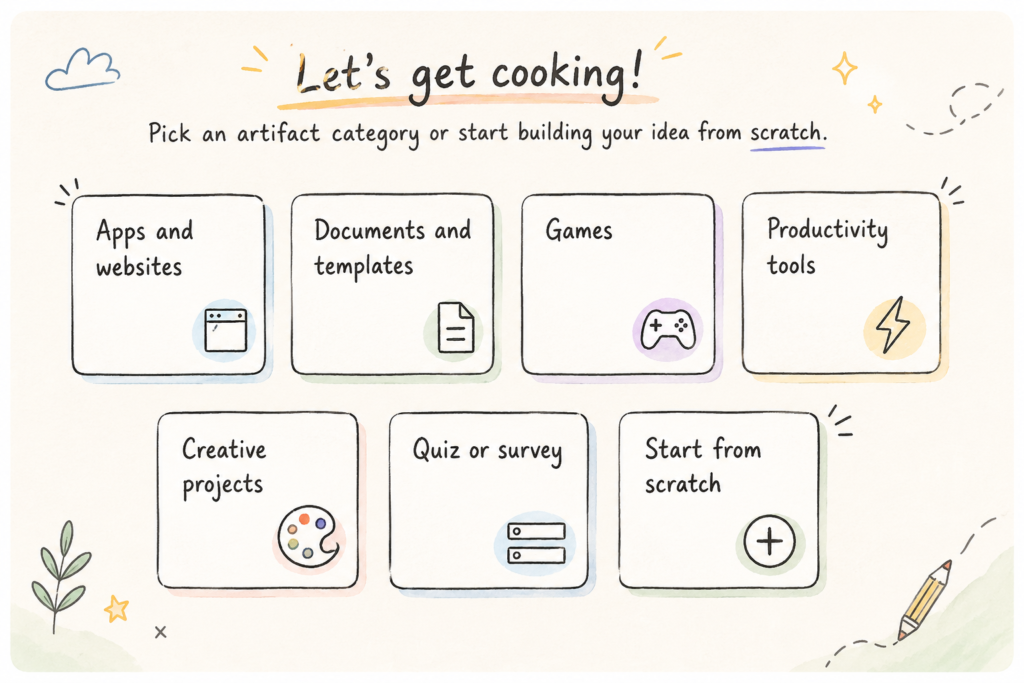
Go to claude.ai. On the left sidebar, you will see Artifacts. Click on it. Then click New Artifact in the top right corner.
Step 2: Choose “Games”
When the artifact window opens, you will see content type options. Choose Games. This tells Claude what kind of output you are looking for before you even write your prompt.
Step 3: Write Your Prompt
This is where the real work happens — and it is worth being specific. The more context you give, the better the output. Here is the prompt I used:
I need an Exit Test Game – Empower A1, Unit 3B & 3C
Duration: 15–20 minutes | Platform: Browser-basedContext: Design an interactive exit test game for an online English class. The students are adults aged 25–35, studying at CEFR A1 level in an evening online class via Zoom.
Units Covered:
Unit 3B: I Usually Have Dinner Early
Unit 3C: Ordering food and drinks in a caféLearning Objectives Tested:
Food and meal vocabulary (breakfast, lunch, dinner, snack, cereal, toast, pastry, fruit, eggs, coffee, tea, rice, meat, bread, cheese)
Adverbs of frequency: always, usually, often, sometimes, never
Telling the time (o’clock, half past, quarter past)
Eating habits and reading comprehension
Polite requests in a café context
Step 4: Review, Edit, and Iterate
Claude will generate a game immediately. But don’t stop there — this is where your teacher instinct takes over. I noticed a few things that needed fixing: some questions were too difficult for A1, one section was too long, and the instructions were not clear enough for students working independently online.
I edited directly in the artifact window and asked Claude to adjust specific parts. For example, I asked for something more competitive and interactive — and Claude suggested a team-based format with a game board, five categories, point values, a steal round, and a confetti celebration for the winning team. That version felt much more alive.
Step 5: Share the Game
Once you are happy with the result, click the Share button in the top right of the artifact window. Claude generates a public link that anyone can open in their browser — no login required. You can share it directly in Zoom chat, post it in your course group, or add it to your blog.
Here is the game my students played: Exit Test Game – Empower A1, Units 3B & 3C
What I Learned from Creating ELT Games with Claude
The first output is rarely the final one. Claude is fast, but you are still the teacher — you know your students, their level, and what will actually work in your classroom. Think of it as a very capable assistant that needs your guidance to get it right.
Also, the more specific your prompt, the less editing you need afterwards. Level, age group, platform, topic, duration — the more you include upfront, the closer the first draft is to what you actually want.
Creating ELT games with Claude has become a regular part of my lesson planning — not to replace my own ideas, but to bring them to life faster.
Have you tried creating ELT games with Claude or another AI tool? I’d love to know what worked for your class.
If you’re interested in more hands-on AI experiments in the EFL classroom, you might also enjoy Can AI Feel What You Feel? and Can AI See What You See?
An Update on Creating ELT Games with Claude: A Second Example:
A Tense Review Detective Game
The exit test game above was competitive and team-based. But not every classroom moment calls for teams and points. Sometimes you just want students to slow down and really look at a sentence.
For a B1 tense revision lesson, I asked Claude for something different: a detective game where students click on the word that’s using the wrong tense, get an explanation, and move on to the next case.
The prompt I used was simple:
I teach a B1-level class of teenagers. I want a short, interactive game to review all the main tenses. Instead of multiple choice, I want students to find the mistake themselves by clicking on the wrong word in each sentence. After a correct click, show a short explanation of why that tense was wrong. It needs to work well on a smart board in front of the whole class.
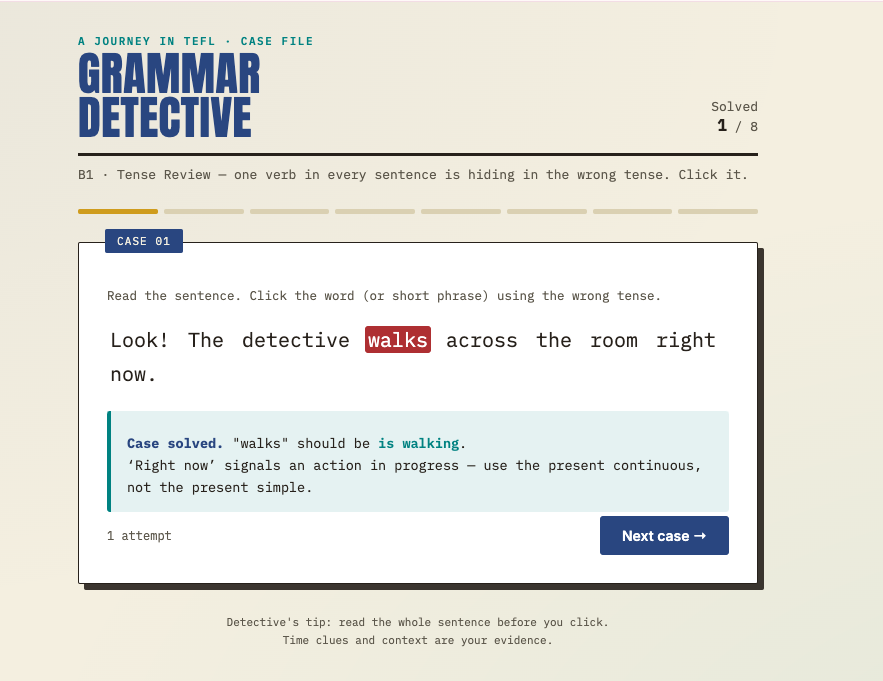
I play it on the smart board with the whole class split into two rows. One student from each side comes up, reads the sentence, and clicks on the word they think is wrong. If they’re right, we read the explanation together. If they’re wrong, the other row gets a turn.
You can read the full breakdown, including how I ran it in class, here.
💡 Want practical lesson plans, ready-to-use classroom materials, and AI tips delivered straight to your inbox every week? Join my free newsletter below: